If you are not familiar with Atomic Learning, it is the online video training services provider for the University of Richmond. There are hundreds of applications in their inventory, often spanning multiple versions of the application and for both Windows and Mac users. Applications include but are not limited to Microsoft Office, Adobe Creative Suite (Photoshop, Acrobat, InDesign, etc.), Blackboard, iPod Touch, and Windows and Mac OS. Tutorials are broken up into short (1-4 minute long) video tutorials that you can watch using Flash or QuickTime formats. Users can pause, rewind, or navigate easily between video clips. You can access the system outside of Blackboard by going to http://is.richmond.edu/training/tutorials.html. Continue reading ‘Atomic Learning Building Block Now Available’
We all do it and we all suffer. You know what I mean, we copy our text, tables and other information from Microsoft Word into Blackboard. The next thing you see is an item that doesn’t display correctly or at all. Now there is a solution: Paste from Word!
The Paste From Word feature provides an easy way to paste text from Microsoft® Word into the text editor without bringing Microsoft specific markup with it. This is added to the text editor. When used to paste text from Word, Microsoft markup is stripped out so the text does not become corrupt and appears as it did in the original Word document. When using the Visual Textbox Editor, you can access through a toolbar. The image below will help you locate this hidden gem! Continue reading ‘NEW Feature – Improved Pasting from Word’
Journals allow your students to engage in reflective practice throughout the semester in a private platform that only the instructor and the student can access.
You can create a journal by going to:
- Control Panel > Course Tools > Journals
- The Tools menu item > Journals
- A content area > Add Interactive Tool > Journal
This viewlet from Blackboard’s On-Demand Learning Center will take you through the Journal creation process step-by-step.
During creation, you can also specify whether you’d like students’ journals to be graded. Journals can be indexed monthly or weekly, and instructors can comment on students’ entries. (Note: Formatting of comments is currently unavailable, but a Blackboard representative said this feature would be available in a future version.)
Groups can also have journals. Journals and Blogs are VERY similar in groups, but there are some subtle (and important) differences:
- In a Group, you can select whether all members of the group can view the journal (essentially, a blog), or members have individual journals (leave “Permit Members to View Journal” unchecked). Blogs are available to all members of the group by default.
- Blogs have the option of anonymous comments and entries. Journals do not.
Once you’ve named your journal, please be careful not to edit the link; doing so may be associated with a bug.
Another idea: Journals can also be used by students to post short, written homework assignments that are all displayed on one screen.
Got a question about journals? E-mail the CTLT liaisons at blackboard AT richmond DOT edu.
Faculty have been asking about private blogs (those that are not open to the entire Web) for some time. With Blackboard 9, your wish has been granted! You can create a blog inside of Blackboard open to contributions by your entire class, a group of students, or a single student. Individual blogs differ from journals because they can be read and commented on by all students. Group blogs are restrict viewing and commenting to members of that group. Journals are private “blogs” that can only be seen by its author and the instructor.
Why use a blog? Blogs provide an environment where students can review their peers’ work — no longer will the only reader of an assignment be the instructor. Blogs or journals can also serve reflective spaces where, over the course of a semester, an instructor can see how much the student has grown in knowledge and understanding of course concepts if s/he blogs regularly. They’re organized chronologically, making it easy for an instructor to chart that progress.
Instructors have the option to link blogs to the Grade Center, allow anonymous commenting, and enable students to delete their own posts.
If the instructor is using a Home Page, in the “What’s New” module, students and instructors are notified by default when there are new blog entries, as well as new discussion board posts, assignments available, and more.
To get started creating your blog, add a Blog Tool Link to your course menu, use Control Panel > Course Tools > Blogs, or click the Tools menu item > Blogs. Hit “Create Blog” and customize its settings on the following page.
For detailed instructions on blogs in Blackboard, see Blackboard’s short, easy-to-understand viewlets: Creating a Blog, Creating and Editing Blog Entries, and Commenting on Blog Entries.
Groups are one of the most underutilized features in Blackboard, IMHO, but also one of the most useful.
With Groups in Blackboard 9.1, you can:
- Release quizzes and assignments to different groups at different times
- Batch-add people to groups
- Set SmartViews in the Grade Center to view the grades of particular sets of students
Groups basics
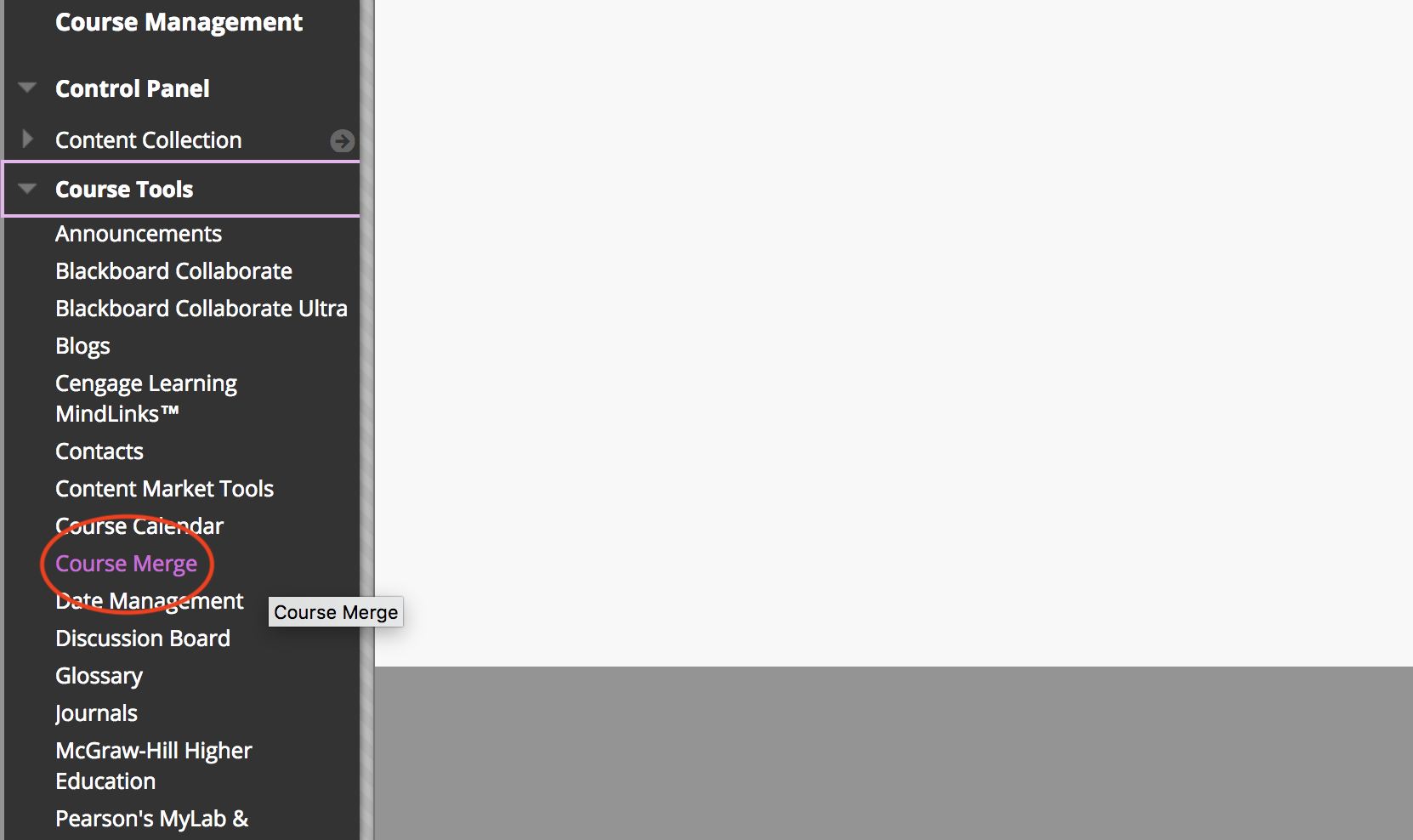
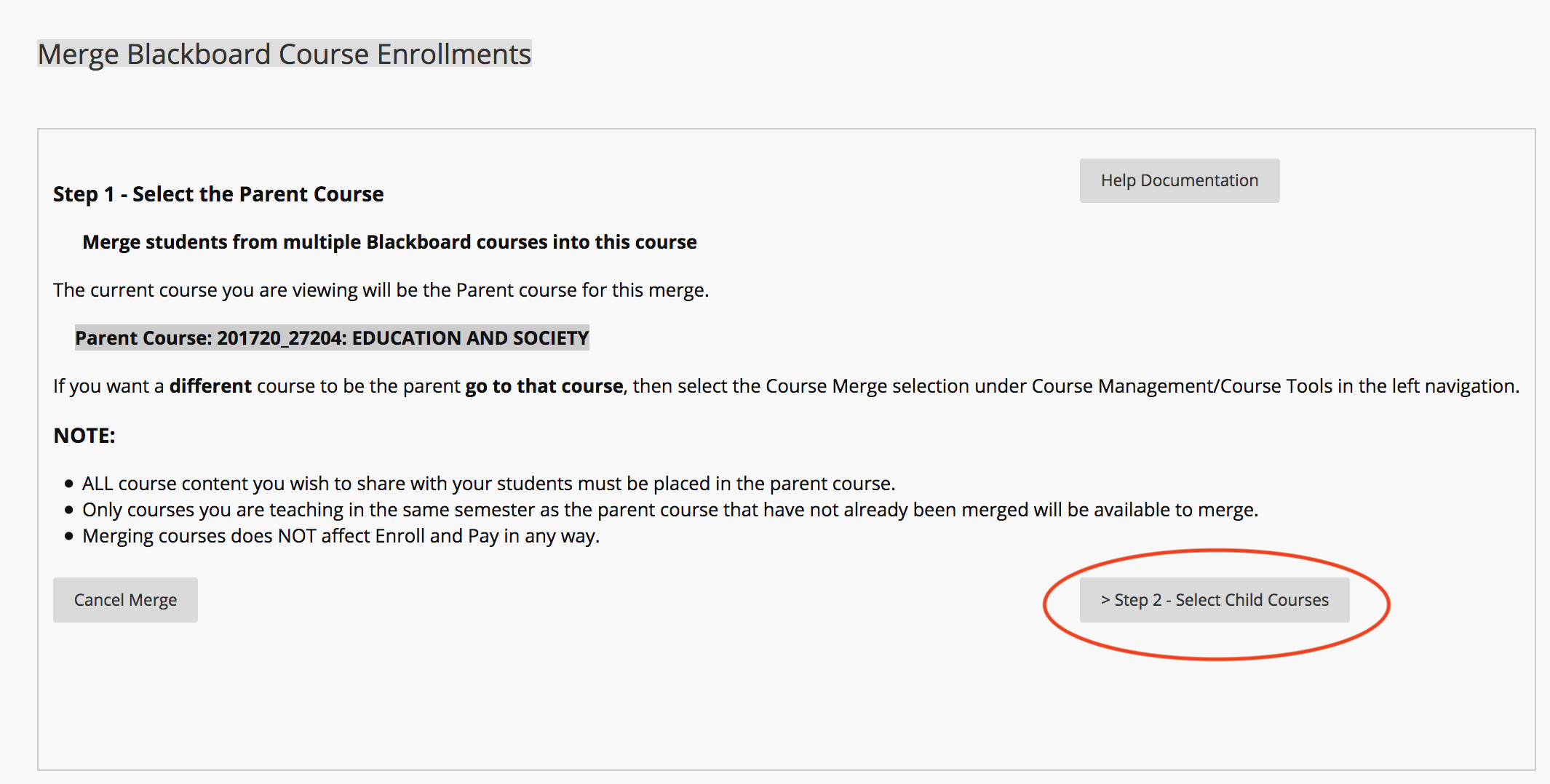
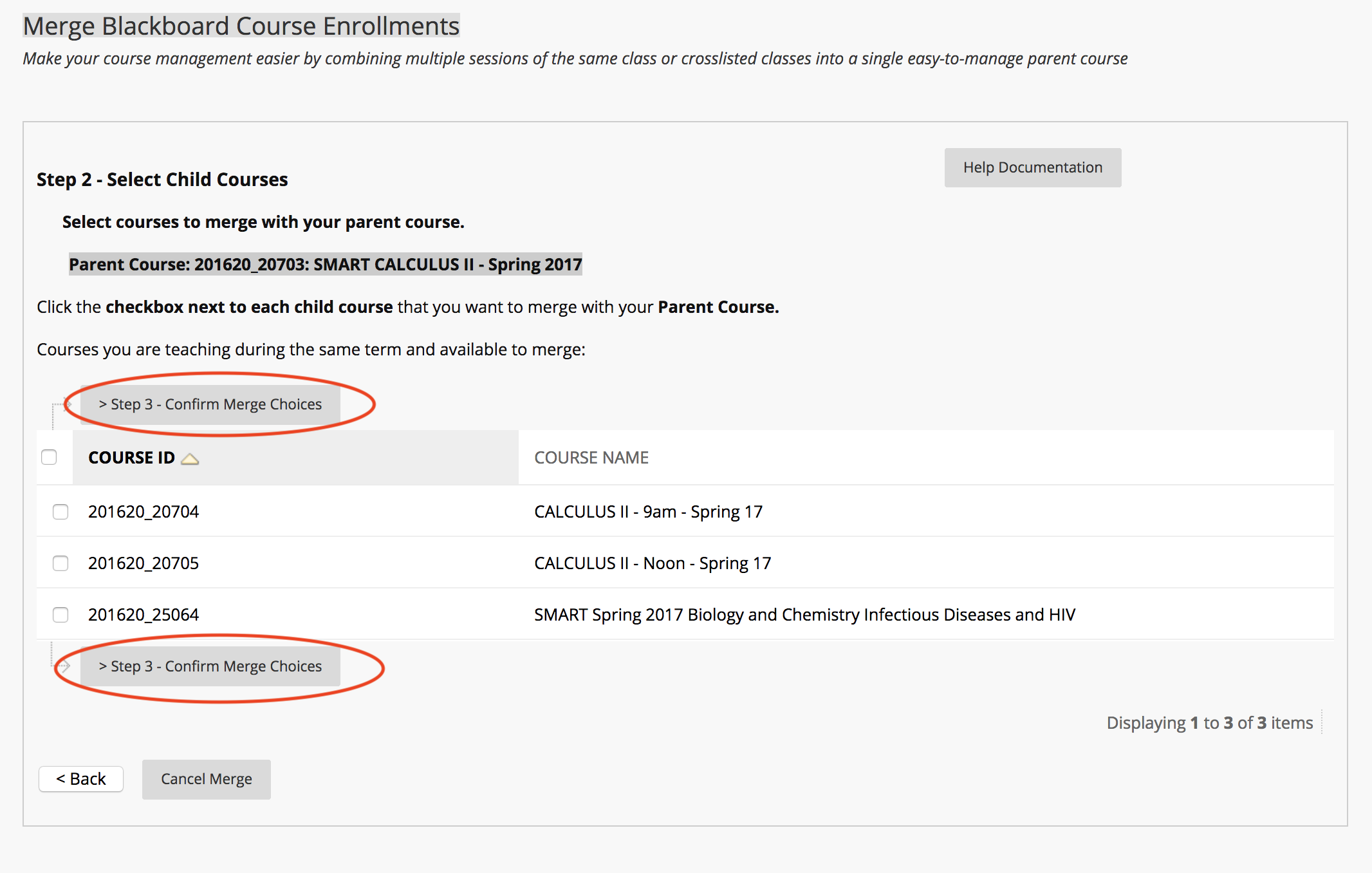
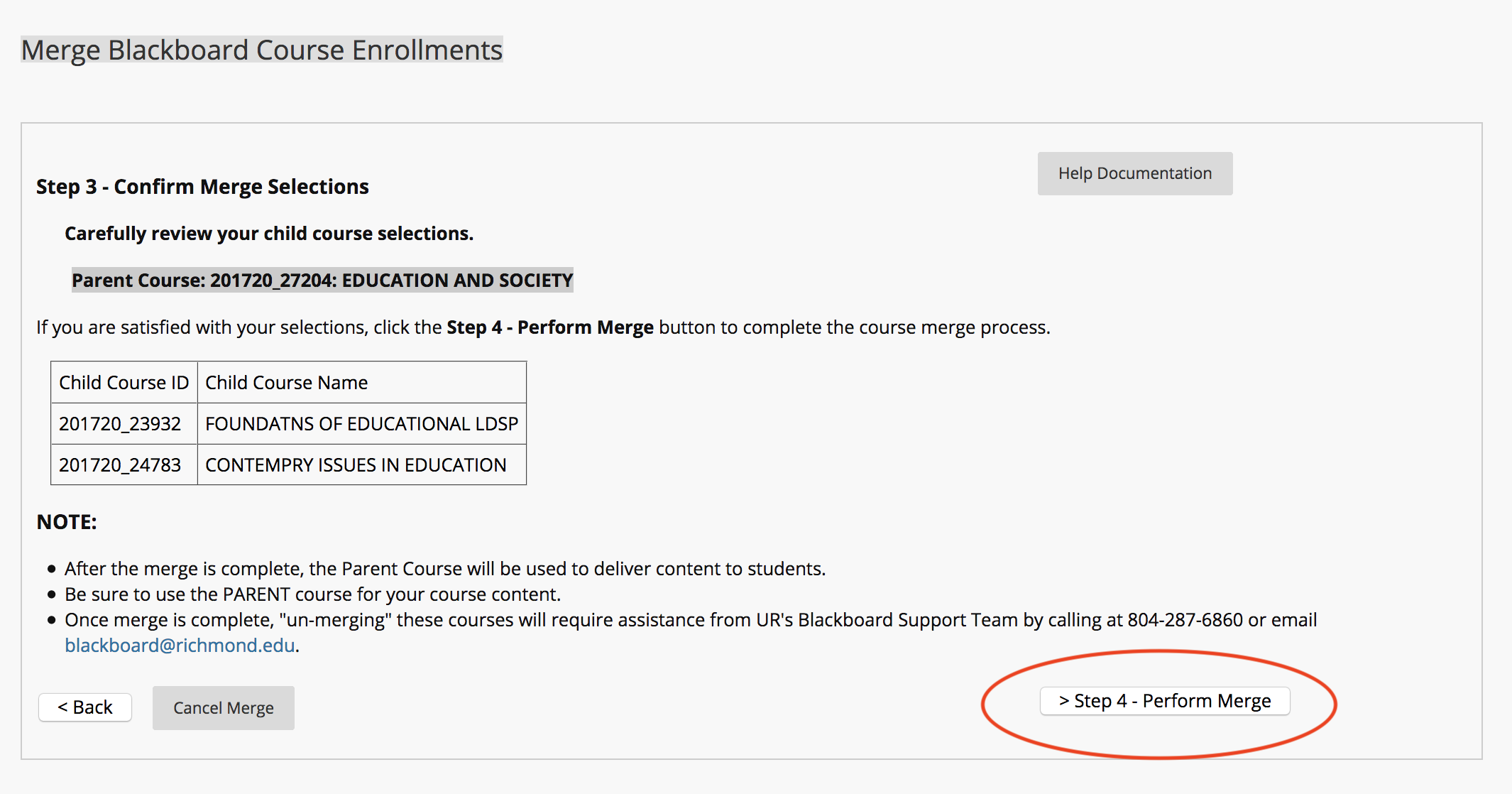
If you’ve requested a merged course or just want to give students a space where they can work as a team by exchanging files, keeping a team blog,using group chat room, etc., Groups will be helpful to you. You can enable some or all of these for each group. Blackboard has a helpful viewlet about how to add students to groups.
Setting up sets of Groups
Group sets can be useful if you want to divide your students multiple ways (i.e. sections AND teams; teams WITHIN sections), The Academic Colleges Group IT (ACGICT) has created two video tutorials that will show you how to create group sets and how to edit group sets. You can also randomize user enrollments into groups in sets.
Self-enrolling in Groups
Need a sign-up sheet? You can use the self-enroll option in Groups to set up groups to which students add themselves. Group sets also include a self-enroll option.
Tests: Adaptive Release for Groups
When setting up a test that will be deployed, you can create Rules in Advanced Adaptive Release, which you find by clicking the double-chevron to the right of the test once you’ve added it to a content area. Select Create Criteria > Membership to select the Group; select Create Criteria > Date to set the to/from dates).
ACGICT also has created a viewlet on using Adaptive Release to restrict content to groups.
Please contact your technology liaison, or e-mail blackboard AT richmond DOT edu for further assistance with or ideas about using groups!
A wiki is a shared web space where students and instructors can collaborate on a linked web of pages using a WYSIWIG (What You See Is What You Get) text editor — and Blackboard 9 has that functionality built in!
Wikis can be available to an entire course or just a group of students, making it easier for them to collaborate on group projects online. You can view a participation summary that shows the number of words modified by each student and the number and percentage of page saves done by each student. Perhaps the most useful feature of all is the ability to compare one version with another to see a student’s contributions over time. Wikis can have one or multiple pages, and Blackboard allows the creation of multiple wikis — useful if you want each student to build his/her own “web” inside of Blackboard.
See “Blogs, Wikis, and Journals” on the IS Blackboard Resources page for specific information on setting up and maintaining your Blackboard wiki.
And please don’t forget to talk with your technology liaison for ideas on how to help your students take a more active part in their learning using wikis.
Did you know that Blackboard 9 supports multiple file and folder uploads simultaneously?
This is part of Course Files, a new feature in Blackboard 9. To use Course Files, you’ll need to know two things:
1. How to upload files to Course Files
2. How to insert files and folders into your course
Part 1: Uploading files
In the course’s Control Panel, click Files and then the course ID. Hover your mouse over Upload, then click Upload Files. It may take a few seconds the first time this Java applet loads, and you may be prompted to verify the security certificate. Once the applet loads, drop and drag files into the filespace, or click browse. When done, click Submit.
Part 2: Inserting files
Go to the content area where you’d like to place your file or folder. Hover over Build Content, and select the proper file type from the menu. Follow the instructions on the screen, and click Submit.
Note: All files uploaded to your course, whether via Course Files or a content area, will reside in the Course Files repository, so you can see your “inventory” and file permissions at any time.